

LanAgent - программа слежения за компьютерами сотрудников в локальной сети предприятия
Любой руководитель совершенно точно знает, что не существует на белом свете сотрудника, готового самоотверженно заниматься на работе своими прямыми обязанностями, забыть на время работы о своих интересах, увлечениях, пускай и самых безобидных или полезных.
Лентяи были, есть и будут. Ну не устанавливать же скрытые камеры? В каждом офисе? Навряд ли.
Грамотный руководитель наверняка знает о «программах-агентах», которые устанавливаются на компьютер и собирают наглядную информацию о деятельности сотрудников. Вот уж её-то спокойно и уверенно можно предъявить лентяю, как веские доказательства его вины.
Очень эффективна в этой роли программа LanAgent. Весьма серьезный аргумент в вечном противостоянии «суровый шеф – хитрые служащие». И здесь дело даже не в том, чтобы вывести нерадивого сотрудника на чистую воду и лишить его премии, а в предвосхищении, предугадывании таких деяний.
Попавшись раз, наш лентяй, уж поверьте, вряд ли станет раскладывать пасьянс или блуждать по просторам сети в отсутствии начальства. Профилактика – лучшее лечение.
Начнем с того, что LanAgent, будучи совершенно невидимым (даже для считающего себя «продвинутого пользователя»), осуществляет полное слежение за действиями пользователя: запоминает все программы, запускаемые на конкретном компьютере, перехватывает посещённые сайты, следит за содержимым буфера обмена и делает снимки экрана (скриншоты). Эти данные передаются на компьютер администратора и хранятся в базе данных, недоступной для остальных пользователей.
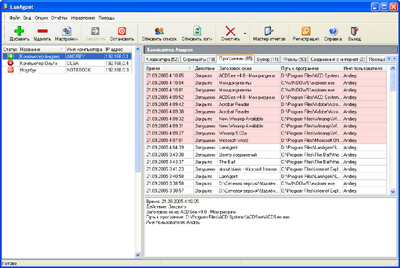
Главное окно программы LanAgent 1.8
Немного о том, как работает программ LanAgent. Программа состоит из 2-х частей – пользовательская часть (агент) и администраторская часть. Администраторская часть ставится на компьютер администратора, а агенты на компьютеры пользователей. Агенты осуществляют мониторинг всех действий пользователя на каждом компьютере, а администраторская часть производит централизованный сбор информации по сети (опрос агентов), чтобы затем администратор смог все данные просмотреть на своём компьютере и сделать отчёт.С помощью мастера отчётов можно выбрать пользователей, для которых делать отчёт, период, за который выбирать данные, а также типы логов, которые необходимо включить в отчёт. Отчёт будет создан в html-формате.
Главное окно программы разбито на несколько закладок:
-
Клавиатура - здесь находится информация по нажатым клавишам. Запись ведется по окнам программ, в которых производилось нажатие клавиш. Список окон - в таблице, с сортировкой по времени. В нижней части закладки - заголовок окна, путь к программе, пользователь, работавший с ней, и, конечно, все клавиши, которые он нажимал. Программу можно настроить так, чтобы показывались только символы, а системные клавиши были скрыты. Например, если были нажаты следующие клавиши:
"[Shift]Программа[Space][Ctrl][Shift][Shift]LanAgent[Shift]." То установив галочку "Показывать только символы" вы увидите следующий текст:
"Программа LanAgent." -
Скриншоты - скрытые агенты умеют периодически, с заданным в настройках интервалом, делать скриншоты всего экрана или активного в данный момент окна (это опять же указывается в настройках). Все сделанные картинки сохраняются в базе данных вместе со временем создания, заголовком окна и именем пользователя. Таким образом, владельцу компьютера остается только выбрать интересующую его запись и дважды "кликнуть" на ней мышкой, чтобы наглядно увидеть, что происходило на его ПК.
-
Программы - эта закладка предназначена для просмотра информации о том, кто и когда запускал и закрывал те или иные программы. Причем на экране отображается не только путь к использованному ПО, но и заголовок его окна.
-
Буфер обмена - по мере появления данных в буфере информация об этом заносится в свою таблицу. Здесь отмечается, в каком окне была выполнена операция и кто ее сделал. При выборе записи в таблице в нижней части закладки отображается содержимое буфера. Нужно иметь в виду, что вы можете сохранять содержимое буфера обмена не полностью, а частично. Для этого можно установить максимальный объем сохраняемой информации.
-
Файлы и папки - все изменения в файловой системе будут также зафиксированы: создание, удаление и переименование папок или файлов. Можно следить за всей файловой системой, а можно указать только конкретную папку для мониторинга.
-
Компьютер - эта закладка предназначена для просмотра информации о том, кто и когда включал и выключал компьютер.
-
Соединения с интернет - все моменты выхода в интернет, а также разрывы связи будут зафиксированы и представлены на этой закладке. Вы также сможете узнать, по какому соединению производился выход в интернет.
-
Посещённые сайты - скрытые агенты запоминают все сайты, которые посещал пользователь. Вы сможете увидеть как саму ссылку страницы, так и её заголовок.
Что можно делать с лог-файлами кроме их непосредственного просмотра? Вести в них поиск. Для этого выбирается запись, с которой будет начинаться поиск, и вводится строка для поиска. Можно установить режим поиска с учетом регистра.
В программе есть возможность удалённо управлять настройками агентов. Администратор может не вставая из-за своего компьютера указать агентам, какие действия пользователя перехватывать, с каким интервалом делать скриншоты. Может удалённо запустить или остановить мониторинг, послать на компьютер пользователя текстовое сообщение и т.д.
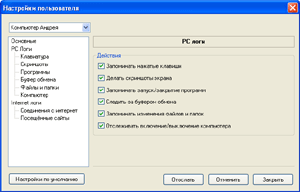
Управление настройками скрытых агентов
Администраторская часть программы может с определённым интервалом, заранее установленным, автоматически опрашивать компьютеры пользователей и получать с них собранную агентами информацию.
Подведём итоги: с помощью программы LanAgent можно эффективно отслеживать рациональность использования рабочего времени сотрудниками, наблюдать за ними в режиме реального времени. Но перегибать палку, пожалуй, не стоит, смысл программы все же в том, что бы не поймать как можно больше «преступников», а предотвратить такие действия.
